The “Windows 11” update released on October 15 has proven to be quite significant.
Until now, Microsoft had brushed aside the problem of its OS consuming too much memory because, back in the day, high-capacity memory was not so expensive, and it had prioritized improving performance even at the cost of consuming resources.
However, with memory prices soaring amid demand for AI—and memory becoming difficult even to obtain in the consumer market—some people are holding off on replacing their PCs or continuing to use “Windows 10” instead of upgrading to Windows 11. Microsoft has therefore shifted toward optimizing the OS to run smoothly even with little memory. It might have done this from the beginning, but there were presumably also problems such as optimization causing drawbacks elsewhere.
At hand is a Windows PC with 8 GB of memory. It is a 2017 Let’s Note “CF-XZ6” model that I bought on a sudden impulse in August 2026. It apparently cost around ¥250,000 at the time, but because it was a refurbished unit, I was able to buy it for about ¥30,000. Since it is a nine-year-old machine, it was originally not compatible with Windows 11. However, Windows 11 was already installed when I purchased it, so I have continued using it as-is.
Until now, the limited amount of memory meant that I could not do much with it, and I had used it only for limited purposes, mainly reading news in a browser while having breakfast. It was, at best, just barely still in active service.
With the update, its previously sluggish operation became relatively smooth. Loading news pages and switching tabs also became smoother than before. Checking Task Manager showed that a considerable amount of memory could apparently be allocated to applications. I wondered whether it might also work as a secondary machine for writing drafts or gathering reporting material, so I decided to set up the environment and give it a try.
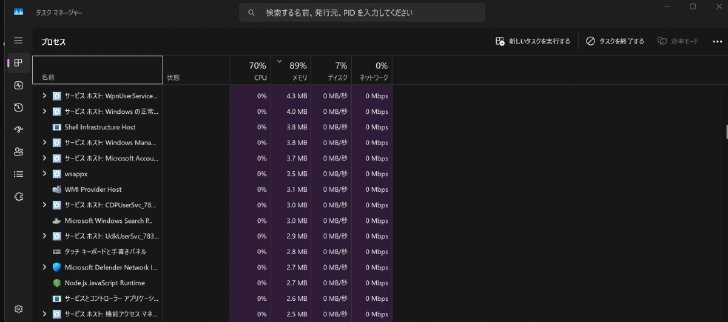 Memory usage remains just under 90 percent
Revising Japanese text conversion
As for an IME for Japanese text conversion, I previously introduced “Copilot Keyboard,” but for the past two weeks or so, my personal favorite has been “Meltype.” I previously introduced the Mac version, which I built and used myself, but its greatest feature is that it automatically switches between Japanese and English input without any special key operation. The Windows version was originally the one being developed first.
On October 28, version 1.4.0 was released, making the default conversion engine either the standard IME or “Mozc” (developed by Google in the United States). The settings screen also allows “Zenzai,” a neural Japanese text conversion engine labeled as experimental and accompanied by a warning, to be selected. It is disabled by default, and you must install Zenzai and start the local server yourself. Development of “azooKey for Windows” as an IME that uses Zenzai is also continuing, but because the public release has remained at v0.1.0-alpha.1 from March 2025, it would make sense to use Meltype 1.4.0.
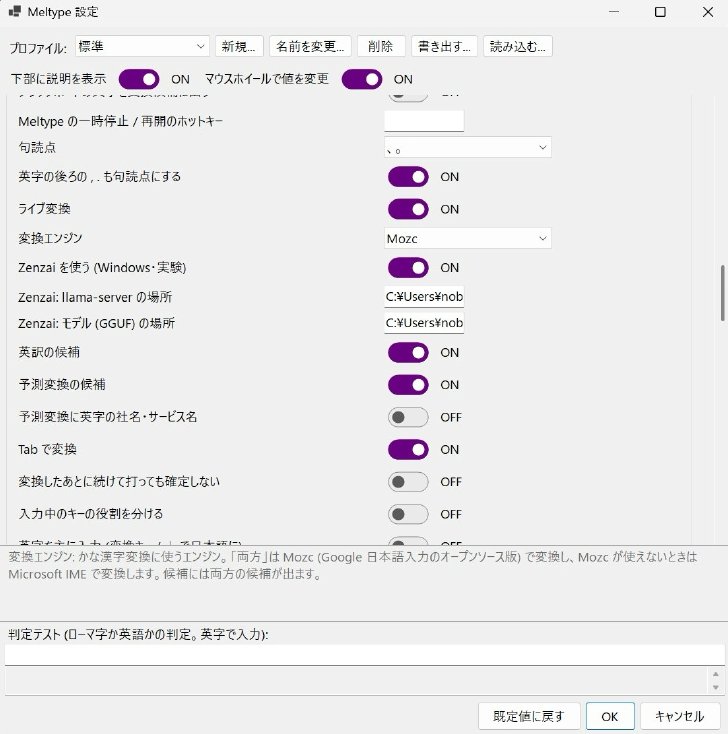 The conversion engine can be Mozc or the standard IME, with experimental Zenzai also available for selection
An even more significant point is that Meltype supports live conversion. Live conversion is a style of Japanese input in which, instead of displaying a conversion window, the conversion process is shown directly on the input screen when entering Japanese. Apple’s native IME for macOS first implemented this feature in “OS X El Capitan” in 2015, but for a while no other major IME adopted it. It was only very recently that others following suit were publicly announced, with “azooKey for macOS,” first unveiled in March 2024, being the first. For Windows, adoption is also gaining momentum, with the public release of azooKey for Windows (March 2025) and “Mozkey” (released April 2026) supporting it, among others.
The problem is whether it runs satisfactorily on an underpowered machine with 8GB of memory. I installed it as-is using the publicly available installer, selected Windows IME as the conversion engine, and tried it out. I found problems such as the input switching back to romaji midway through live conversion from romaji. The conversion processing apparently cannot keep up, so from that point onward, it seems to pass the typed characters through as-is.
Until now, even when there were problems, all we could do was wait for development to progress, but now we have AI. I used “Codex” to attempt to optimize it for low-powered computers. I had the AI analyze the phenomenon whereby, when conversion could not keep up, the input would switch to romaji, and
In TSF input, when the response to the conversion processing is slow, there is a path that passes the key directly to the application, which is consistent with the symptom of romaji being entered.
was the explanation. If the conversion processing can no longer wait, it passes the key input directly to the application, so it appears to enter romaji. When I asked it to analyze why it could not keep up and to fix the problem, I received the following response:
During live display, in addition to the conversion result selected for display, it was computing alternative candidates for each phrase segment that were not displayed. We are working on a fix that skips this additional processing only during live display and generates those candidates as before when selecting a candidate with Space.
was the response. And the completed revised build was, astonishingly, one that forcibly disables live conversion. It would indeed prevent dropped input, but it would be a shame not to be able to use the live-conversion feature that is the whole point. So I asked it to optimize the program while keeping live conversion active.
As a countermeasure to maintain TSF input, set an overall timeout for Mozc calls during live conversion. Even if the conversion cannot keep up, the design retains the Japanese reading instead of directly entering romaji.
That was the approach. When I tried this build, dropped input no longer occurred even on an underpowered machine. The response does become somewhat slower until the text is converted into Japanese, but at least it waits. If it switches to romaji midway, you have to delete that portion and enter it again, so this is far better. After all, for someone accustomed to live conversion, this input method feels the most natural.
This article is also being typed with the Windows version of Meltype, and the only applications running are the browser and “Cursor,” the editor used to write the article.Cursor also has a file browser function, running an AI that researches and proofreads the manuscript in the right window and Codex that works on improving Meltype in the left window.
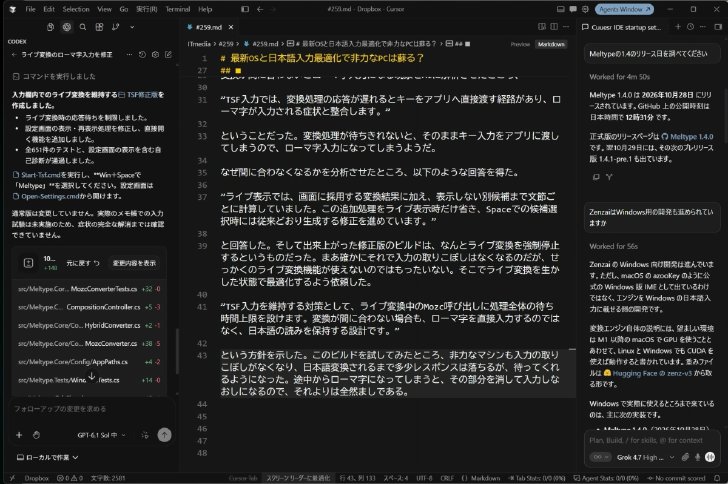 With Cursor, you can handle a considerable amount of work.


