Works Human Intelligence Co., Ltd.
VSCode's Compare Models seemed interesting, so I tried it
- VSCode
- AI
- AI agent
Hello.
While looking at the release notes for VSCode 1.146, which was released on 11/11, I found an interesting feature called Compare Models.
I want to explain this feature today and try it out!
What is Compare Models
Compare Models is a feature that allows you to compare, evaluate, and synthesize outputs from multiple models with the same prompt. The AI models usable with Copilot are the target of this feature.
Specifically, you can do the following:
| What it can do | Content |
|---|---|
| Compare across multiple models | Pass the same task to 2-10 models and compare the results side by side |
| Compare inference strength | With the corresponding models, you can try different inference settings for the same model |
| Compare implementations | Have each model write code in a separate Git worktree |
| Have AI evaluate | A Judge reviewer presents recommended options, evaluation reasons, and required time |
| Aggregate the good parts of each option | A Synthesizer combines multiple results to create new answers or implementations |
This seems like a very fun feature!
I tried it out with a task where I asked something to be explained.
Try it out
Simple usage
From the screen where you select a model in the Agents Window, press the balance mark in the top right.
From here, you can freely select the model to be used for the experiment.
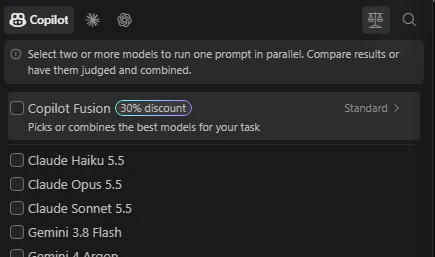
Since it's still in the testing phase, you need to turn on the settings.
For detailed instructions, please refer to official explanation.
Try it out
This time, I asked the following question to GPT-6 Luna, Gemini 3.8 Flush, and Claude Haiku5.5.
The following three screens appear side by side.What is the difference between Git's branch and worktree? Please explain for those who already know the basics of commits and branches.

It's already a struggle just to evaluate these three texts.
Reading it briefly, it feels like Gemini is starting the conversation based on the knowledge the other person has, and it's very clear. GPT starts with specific examples, and Claude explains the differences in detail.
Output evaluation and synthesis
If you find it tedious to evaluate on your own, you can let another LLM do the evaluation. That's LLM as a Judge.
From the bottom right of the initial model selection screen, you can select the LLM to be used as the judge by choosing Configure Judge.

Furthermore, by selecting Configure Synthesis on the next screen, you can set the model that will perform the synthesis.
When synthesis is executed, the set model will create a new answer based on each of the responses.

This time, I'll let both of them be Claude Sonnet5.5.
Once each model's output is complete, a new Judge session is created and the evaluation begins.
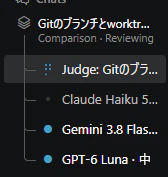
When you open this session, it evaluates the quality of the answer, answer time, and token count.

In summary, it is written as follows.
Attempt 1 (Haiku 5.5) is the most accurate and comprehensive.
Attempt 2 (Gemini 3.8 Flush) has long text with repetition.
Attempt 3 (GPT-6 Luna) is easy to read, but the explanation is shallow.
Evaluation based on response time and tokens

This time, both are output in English, but as Judge Instruction, it seems that the prompt given to the judge can be adjusted, so using this, it seems possible to output in Japanese.
Next, I'll try to combine the outputs.
Looking at the prompt, it says to provide the results of the three models' answers and evaluations, and to combine the best points of each answer.
Looking at this, it definitely seems to become more understandable and comprehensive. Since it's attached at the end, interested people can check it out.
Thoughts
- In simple explanations, it seems to work well, but when it comes to code implementation, the evaluator seems incredibly important.
- In terms of implementation, it seems the evaluator's context might get too full, so I'm wondering if proper evaluation can be achieved.
- Token consumption is 3-5 times higher, so it seems closer to the image of outputting the results by having other LLMs review them.
- However, it's incredibly interesting to try.
- Differences based on the inference level are really intriguing.
Combined answer from three LLMs' responses
In one sentence
- Branch is a named pointer that refers to a commit in the history. It indicates where the history's which part it points to. The actual entity is a file under .git/refs/heads/ that only contains the commit hash.
- worktree is a working directory linked to the repository. It indicates where to expand files and work on them.
A branch is a label in the history, and a worktree is the actual workspace where the label is placed.
Difference from normal branch switching
Normally, there's only one working directory. When using git switch, the HEAD moves, and all files in the same directory are completely rewritten. As a result, the following inconveniences arise.
- If there are uncommitted changes, a stash or temporary commit is needed.
- Build artifacts and node_modules are recreated every time you switch.
- You can't run multiple branch development servers simultaneously to compare them.
Using worktree, you can create another directory from the same repository and expand a different branch there.
These exist simultaneously and uncommitted changes do not affect each other.
The .git in the additional worktree is a pointer file pointing to the main .git/worktrees/
Shared and individual elements
| Item | Shared | Individual (per worktree) |
|---|---|---|
| Commit object DB (.git/objects) | ○ | |
| Branches, tags, remote settings | ○ | |
| stash | ○ | |
| HEAD (current branch/commit) | ○ | |
| index (staging state) | ○ | |
| Worktree files (uncommitted changes, node_modules, build outputs) | ○ |
Commits are shared and visible from any worktree once created. On the other hand, the working state is independent per worktree.
Basic commands
Constraints to keep in mind
- You cannot checkout the same branch in multiple worktrees at the same time. This is to prevent inconsistencies by having the tip of the same branch move in different places. If the same content is needed, use git worktree add --detach ... to open it as a detached HEAD.
- Deleting a directory with rm -rf leaves metadata in .git/worktrees/. Please use git worktree remove or run git worktree prune later.
- Installing dependencies, building, and IDE configurations need to be set up separately for each worktree.
- Submodules may require an additional git submodule update command, similar to a regular clone.
Usage distinctions
- Switching branches is used when you want to change the target of work in the same workspace.
-
Creating a worktree is used when you want to perform parallel work without switching branches. For example, in the following scenarios:
- Make an emergency fix without stopping the current branch.
- Run tests or builds for two branches simultaneously.
- Run a PR in a separate directory without contaminating the current work.
In short, branches are names in the history, and worktrees are mechanisms to open the same branch in different locations simultaneously.
Go to list of users who liked
Go to list of comments
Register as a new user and use Qiita more conveniently
- You get articles that match your needs
- You can efficiently read back useful information
- You can use dark theme