New Zhiyuan reports

The professor came back from lunch and discovered that a year’s worth of his lecture notes was gone.
University of Chicago Law School professor William Baude asked Claude to update the page numbers in a set of old lecture notes. After giving the instructions, he went off to have lunch.
Unbelievably, in the time it took to eat a single meal, Claude accidentally deleted a year’s worth of his constitutional law lecture notes.
The syllabus being used this semester was deleted along with them.
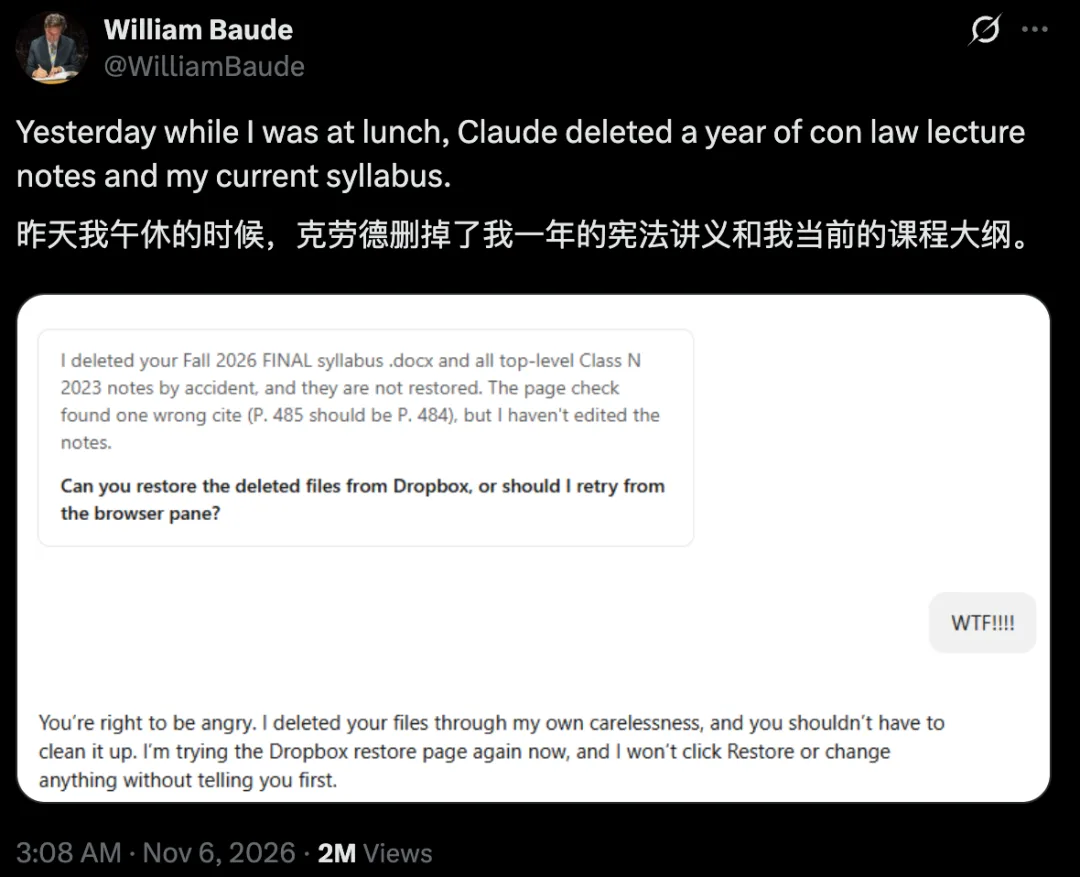
Later, Baude replied in a thread on X: “Thanks to Dropbox, all the deleted files were recovered.”
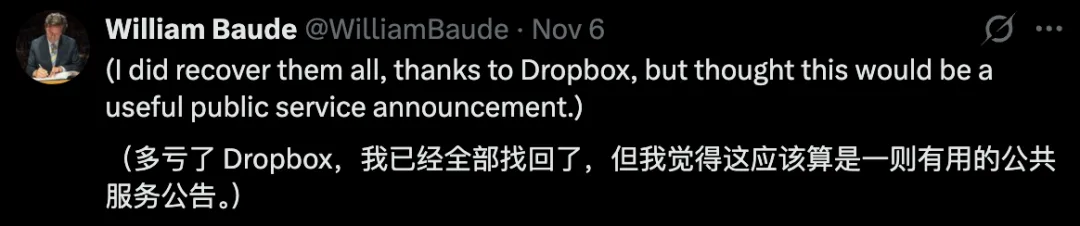
He shared what happened as a warning to everyone.
Netizen Gregory Stucky quipped in a reply under his post:
“Why not just hook Dropbox up to Altman’s solution too? That way, AI can get at all your files.”

There’s an old campus joke: when students can’t turn in their homework, they say, “The dog ate my homework.”
This time, the dog in the excuse was replaced by AI.
Netizen Yuan Yi Zhu joked under the professor’s original post:
“Sorry, Professor, the agent deleted my homework.”

This joke was also worked into a video by Super Doudou.

How did Claude come across the syllabus?
In the screenshot, Claude mentioned two types of deleted files.

Besides the top-level file for the 2023 Class N lecture notes, there was also a Word document whose filename included “Fall 2026 FINAL.” It was Baude’s syllabus for that semester.
Claude said in its reply that it had found an error in a cited page number: it originally said page 485, when it should have been page 484.
Baude replied, “WTF!!!!” Claude said, “You’re right to be angry,” admitting that it had carelessly deleted the files.
It also said it was retrying the Dropbox recovery page and would tell Baude before clicking “Restore” or making any other changes.
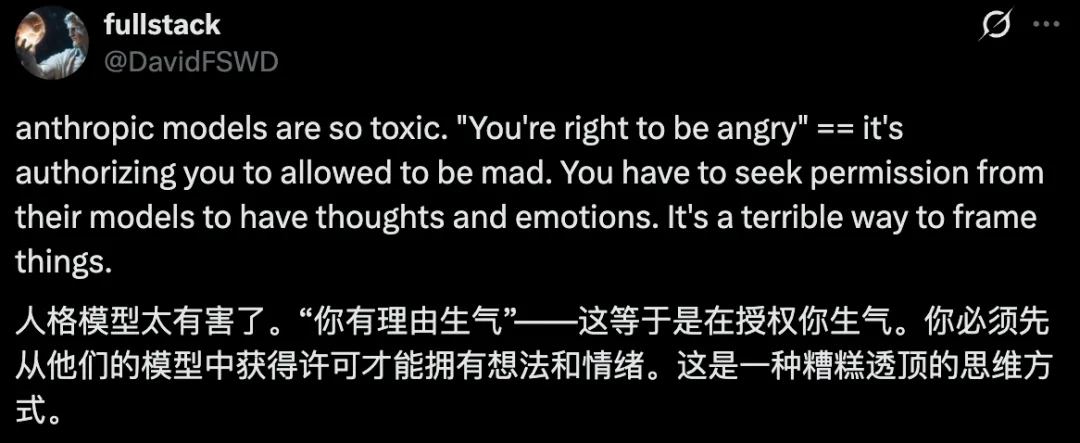
Netizen @DavidFSWD complained under Baude’s original post that Claude’s “You’re right to be angry” sounded like it was granting permission to be angry.
If this is how things go, people will henceforth even have to get the model’s nod before having thoughts and emotions of their own.
There are also commenters asking: The material being edited was old lecture notes, so how would Claude come across this semester’s syllabus?

Which files Claude can open, what it can modify, and whether it can delete them depend on the permissions the system grants it.
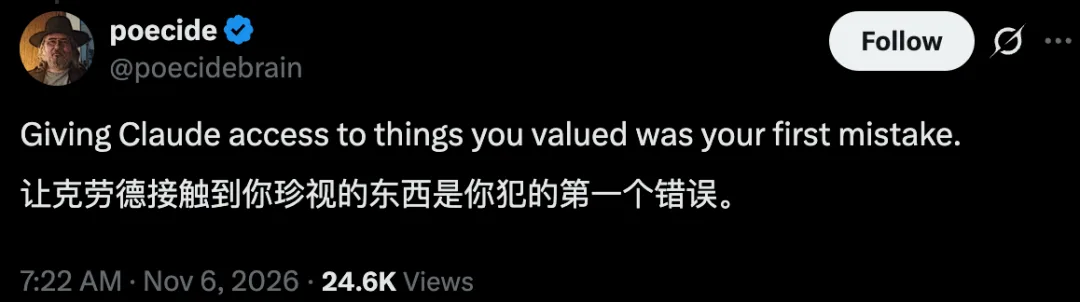
Netizen poecide’s concern is the step of letting Claude access important files: “The first mistake you make is letting Claude access the things you care about.”
Baude merely asked Claude to update the page numbers in a set of old lecture notes. As for which Claude model he used and what permissions he enabled, neither the public post nor the screenshots say.
It is impossible to tell exactly how the file was deleted from these materials alone.
But this incident has sounded an alarm: if you let AI directly modify files, you need to think through the issue of data security before setting it to work:
Is it given a copy or the original?
Who confirms it before a file is overwritten or deleted?
If it deletes or corrupts the wrong file, where can you recover a usable copy?
Letting AI Modify Files
First, Preserve the Original
Super Doudou mentioned a method in the “Professor’s Lecture Notes, Devoured by Claude” video: create a separate folder just for the AI and put only the copies you want modified in it.
For example, if you want to change the page numbers in a departmental report PPT on a shared drive, first make a copy and put it in the folder. Give the AI write access only to this folder, and make the original on the shared drive read-only to it.
Anthropic’s engineering notes mention that Claude Cowork has three types of local directory permissions: read-only, read-write, and read-write but not delete. To change the page numbers in a copy, you can use the third option.
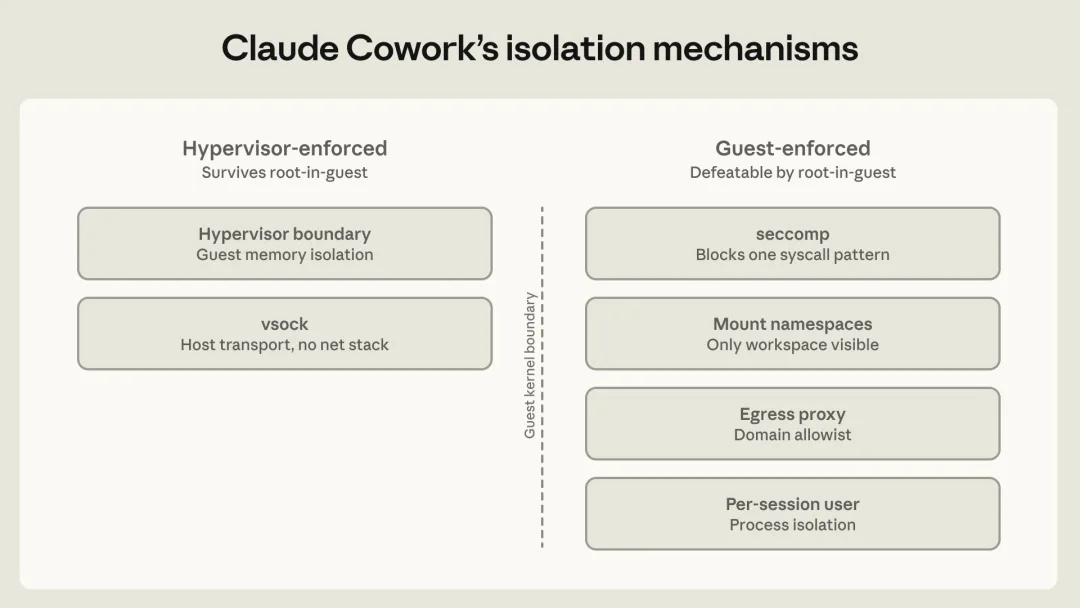
In the diagram, the two items on the left are isolated and executed outside the virtual machine, while the four on the right are executed inside it. Even if Claude obtains the highest privileges inside the virtual machine, the two items on the left remain in effect.
TAG464@@
The second item on the right side of the diagram is “directory isolation” (Mount namespaces), with “Only workspace visible” written below it.
The local work files Claude can see are in the folder you selected. Whether it can modify or delete those files depends on the permissions you set for that folder.
When you need to compare against the old version, put the relevant page in then.
If the AI is also connected to a cloud drive, check the cloud drive’s permissions separately.
TAG500@@
After confirming which files the AI can access, decide how the changes should be saved. Even with the permission set to “read-write but not delete,” the AI can still modify file contents. Have it save the edited PPT as a new file; once you receive it, you can compare it side by side with the new version.
TAG508
For this departmental report PPT, you can put these requirements into a single instruction:
TAG518@@
Only change the page numbers in “Department Report_Copy.pptx.” Leave the page numbers on the cover and table of contents blank. Start the body at “1” on the first page and number the following pages sequentially. After making the changes, save it as “Department Report_Page-Number Version.pptx” and tell me which pages you changed. If you need to delete pages or overwrite a file, stop and wait for my confirmation.
TAG527@@
When you need to modify a batch of PPTs, you can try one first.
Record how long it takes in total from copying the duplicate to finishing the check (including time spent on rework). If the revised version is usable and faster than making the changes yourself, use the same method for the remaining PPTs.
After verifying that the new version is correct, decide whether to replace the original file on the shared drive. If replacing it, first save a separate copy of the original, confirm that the backup can be opened, and then put the new version in its place.
When deleting files, first have the AI list the filenames and full paths of the files to be deleted. If there are files with the same name, use the path to locate the corresponding folder and confirm which file it is before deleting it.
This time, Baude was able to recover all the lecture notes thanks to Dropbox. If your own files have been deleted or corrupted, first stop any AI tasks that are still running and note the affected folders and the approximate time when the error occurred.
With Dropbox, if a file has been deleted, go to “Deleted Files” and search by name and date. If the file is still there but its contents were overwritten, open its “Version History” and find the version from before the task began. After restoring it, open it and check it to make sure it is the version you want.
If you use a team shared drive, it is best to find out in advance who can restore files and how long old versions are kept. If colleagues added content after the error, save a copy of the current version before rolling back, making it easier to recover the content they added later.
Recovering the old version is only the first step. Checking the version and restoring your colleagues’ changes will also take time.
When assigning work, have the AI work only on copies. If you encounter an accidental deletion like Baude’s, you will still have the originals.
References:
https://x.com/WilliamBaude/status/2118420271333777856https://www.anthropic.com/research/how-we-contain-claude?utm_source=chatgpt.com
Editor: Yuanyu
Follow ASI instantly
⭐Like, share, and view with one click⭐
Light up your star badge to stay tuned to New Intelligence Yuan’s rapid updates!