Google has clearly stated that if users allow their information from Gmail or Google Photos to be used in another Google service for personalized ads, that information may also be used for ad customization. Proton, which operates the email service "Proton Mail," has summarized the steps to disconnect "Search Services" including Google Search and Google Maps from Gmail and Google Photos, as well as methods to delete the history stored in the search services.
Google can now use your data for ads: How to turn it off | Proton
https://proton.me/blog/gmail-ads
The following article summarizes the exceptions added in this revised privacy policy compared to Google's previous policy.
Google added an exception to its "policy of not using content from Gmail and Google Photos for ads," making it possible for data sharing with AI to affect ads - GIGAZINE

One of the functions affected by this revised privacy policy is "Personal Intelligence (Personal Intelligence)" available in Google Search's AI mode. With Personal Intelligence, AI mode can refer to emails and photos when users connect Gmail and Google Photos to the search service, allowing it to provide tailored responses for each user.
This feature is also available in the Gemini app, and it started being offered in Japan in April 2026.
"Personal Intelligence" that allows users to input their own emails and photo albums to respond to personal questions is now available in Japan as well - GIGAZINE

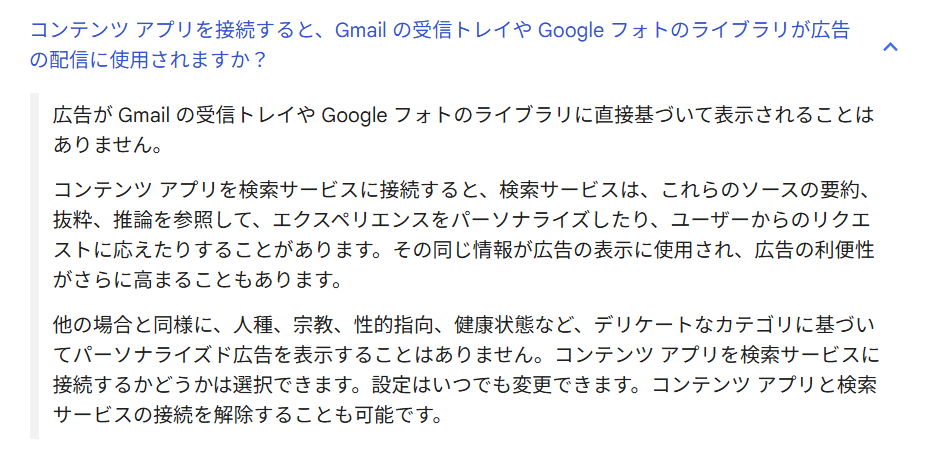
If you do not want your email and photo information to be used in AI mode responses, first check whether Gmail and Google Photos are connected to the search service. official help page says that summaries and excerpts from emails and photos used by the AI mode, as well as inferred information from them, may also be used for ad display. However, Google explains that "ads will not be displayed directly based on the inbox of Gmail or the library of Google Photos."
Check whether Gmail and Google Photos are connected to the search service.
・How to disconnect Gmail and Google Photos from the search service
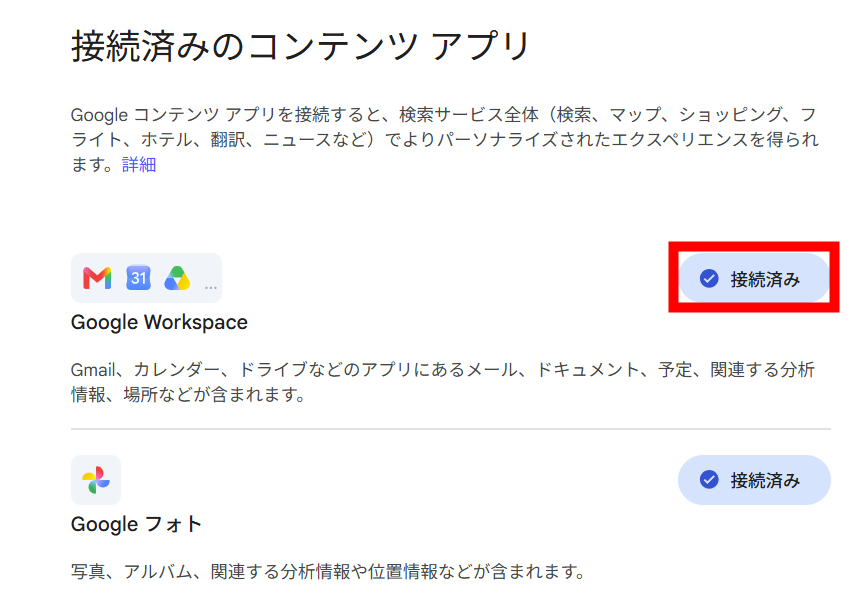
To check the connection status on a PC, log in to the target Google account and open the "Connected content apps" settings page . The connection status for Gmail can be checked under the "Google Workspace" section. If the button on the right side displays "Connected," Gmail is connected to the search service, so click the button.
Click the "Disconnect" button at the bottom right when the confirmation screen appears.
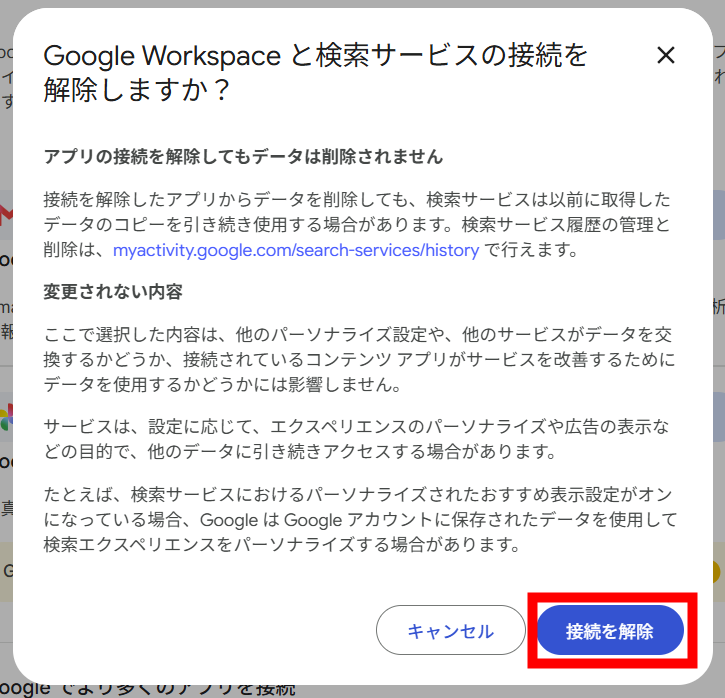
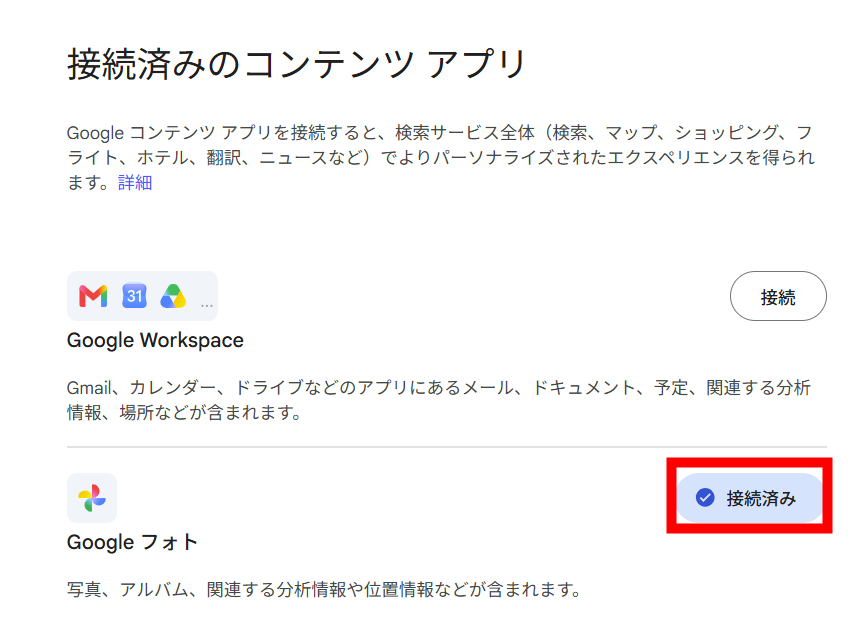
If the "Google Workspace" button changes to "Connected," then the disconnection was successful. If you also want to disconnect from Google Photos and the search service, click "Connected" under "Google Photos."
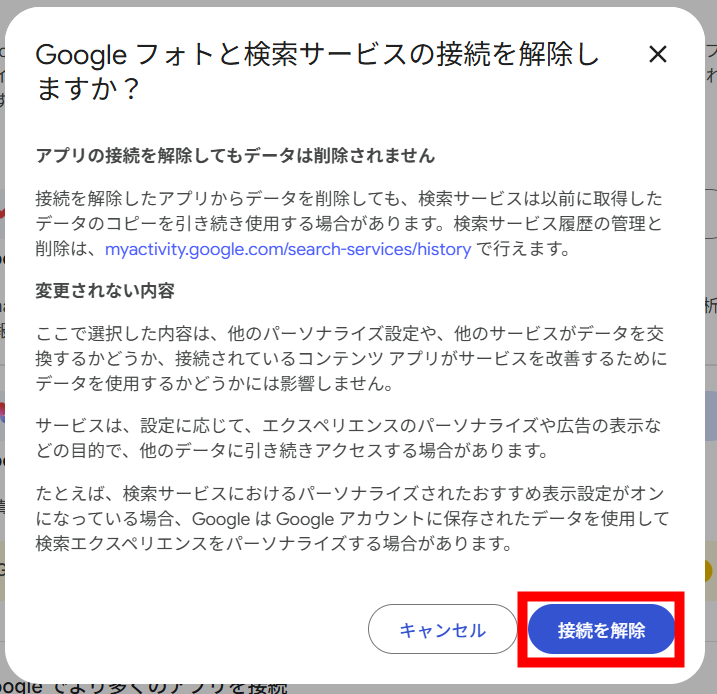
Click "Disconnect" on the confirmation screen and that's it.
・How to stop personalizing search using Gmail information
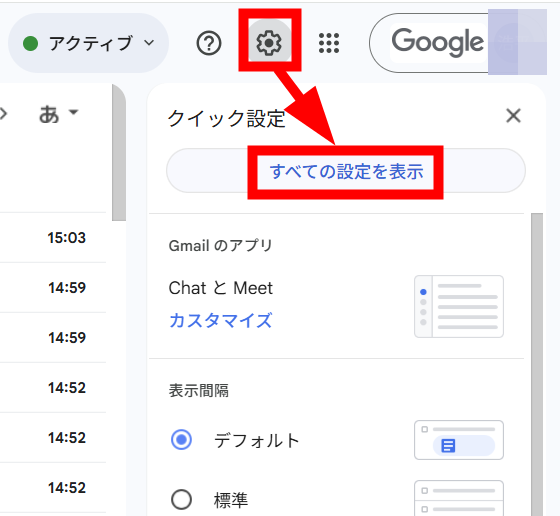
Personalization of the search service using email information can also be disabled on the Gmail side. Open Gmail
, and click "Show all settings" from the gear icon in the top right.
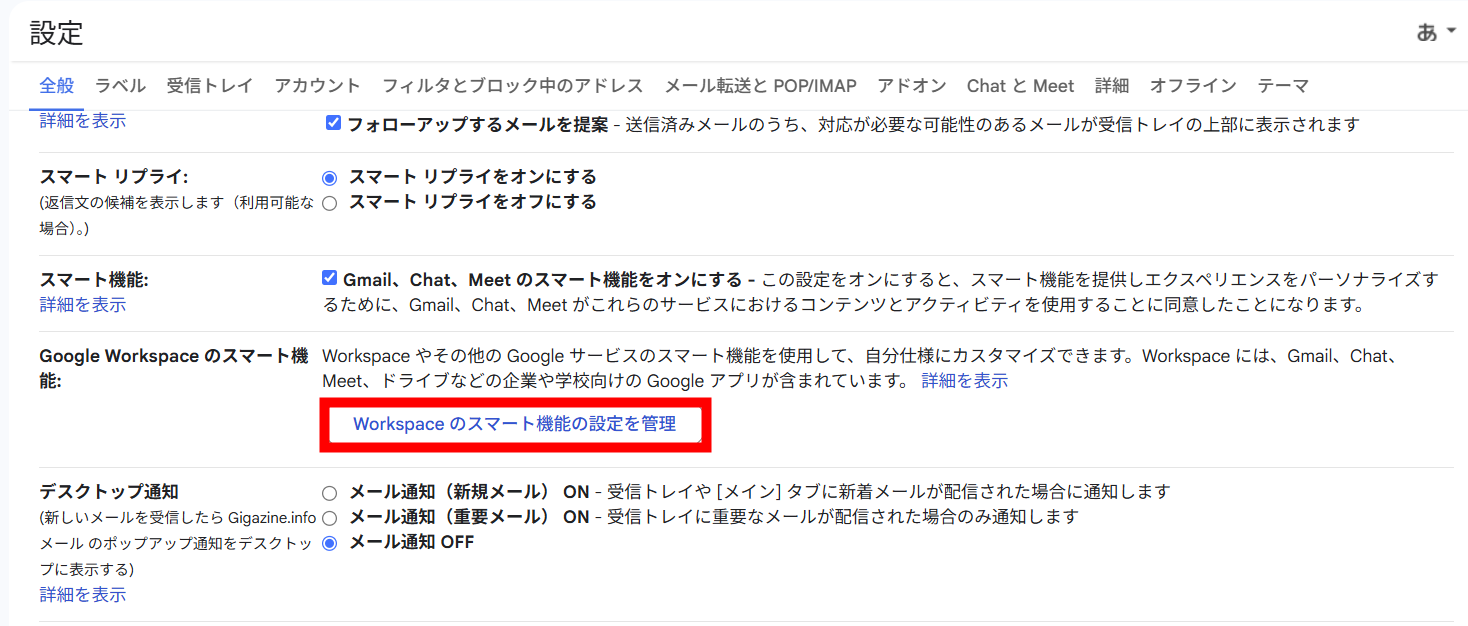
Scroll down to "Google Workspace Smart Features" under the "General" tab, and click "Manage Google Workspace Smart Features settings."
Turn off the switch for "Smart Features of Other Google Services" at the bottom and click "Save."
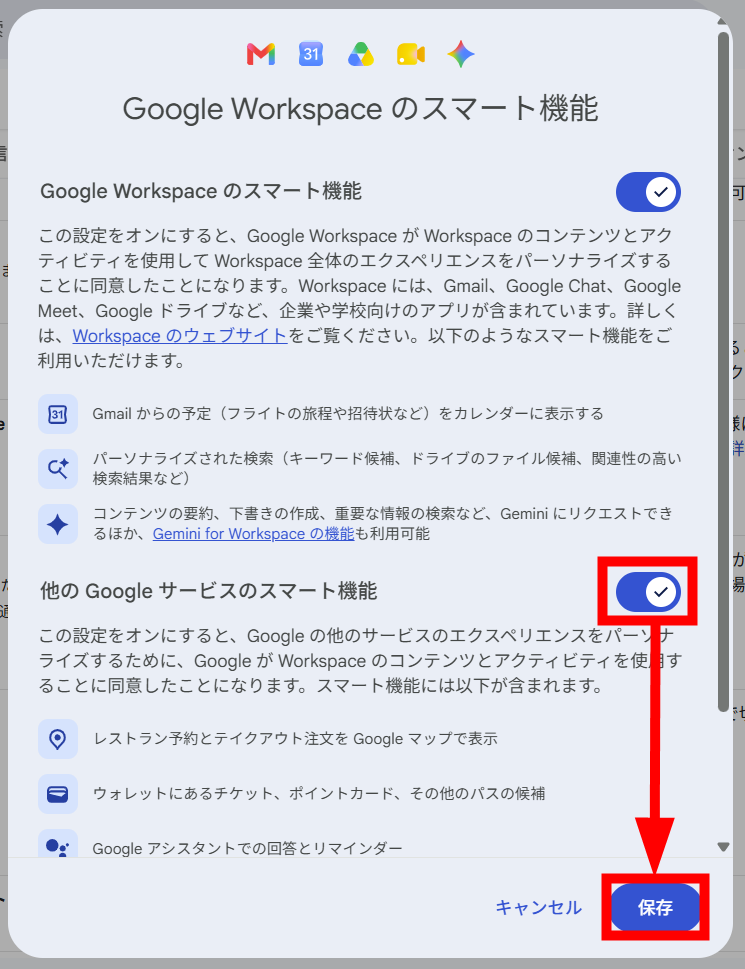
According to Google's explanation, when this switch is turned off, the search service will no longer use information from Workspace services such as Gmail to customize responses, and the feature to display Gmail booking information on Google Maps will also no longer be available.
・How to turn off personalization of search results
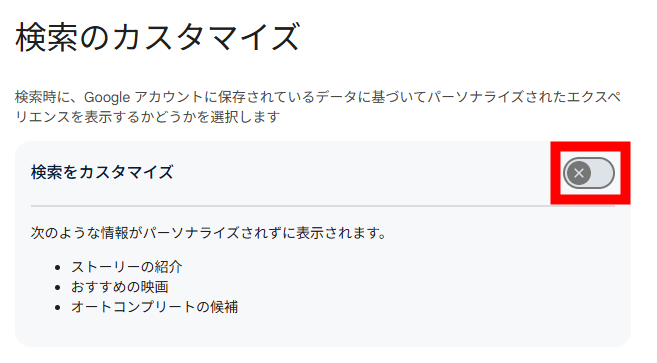
To turn off personalization of search results and suggestions, open Search Customization. According to Google, the display may differ due to "migration of settings in stages," but by turning off the switch for "Customize search" at the top of the screen in the editor's account, we were able to resolve the issue.
・How to delete AI mode history
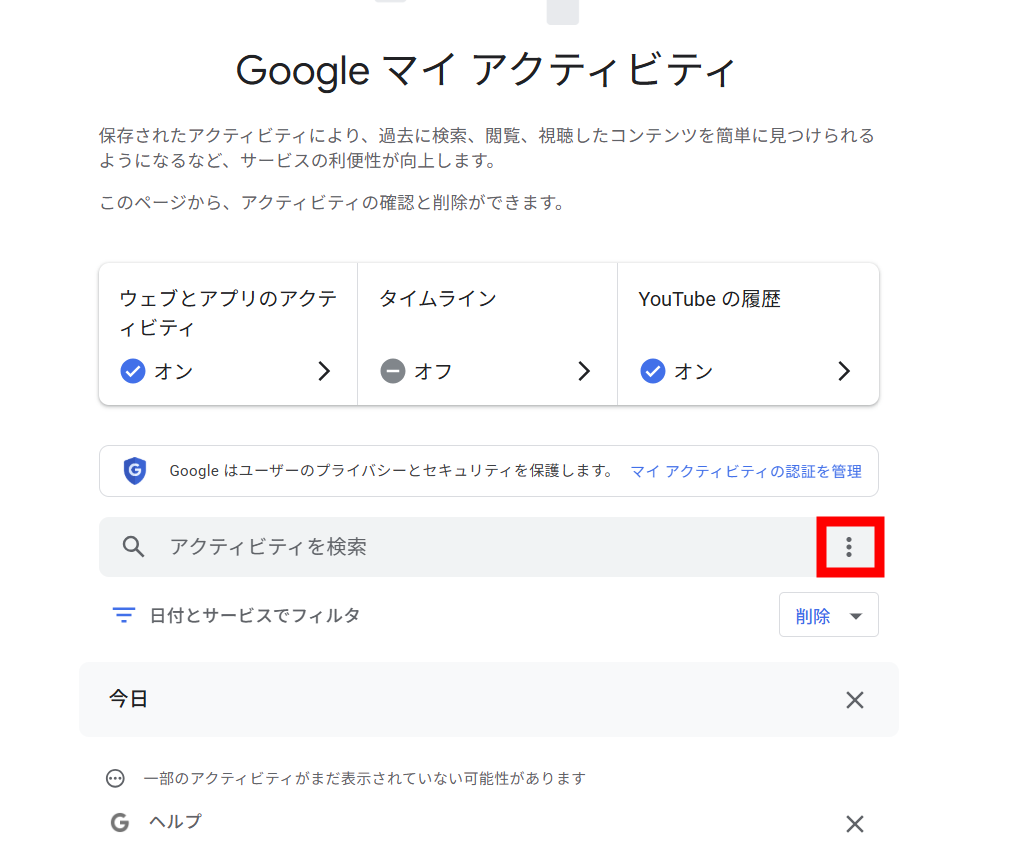
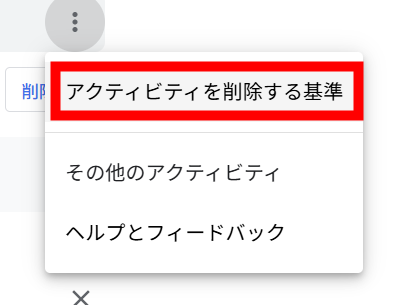
According to Google's explanation, disconnecting or deleting data from "connected content apps" does not result in the deletion of data from the search service history, and the data may continue to be used for training generative AI models. Therefore, if you had connected Gmail or Google Photos to the search service, it's better to delete the AI mode history. To delete AI mode history, open My Activity, and click the "︙" at the right end of the search bar.
Click "Criteria for deleting activity."
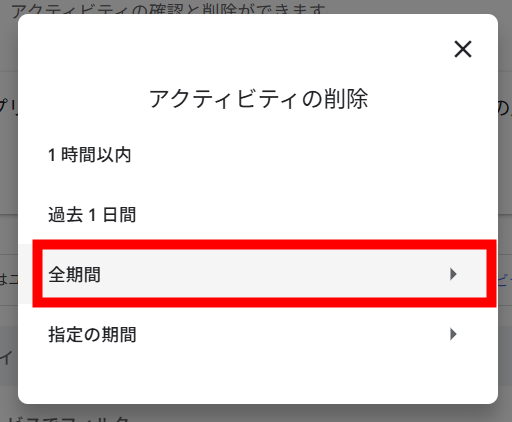
Select the period you want to delete. Here, select "All time."
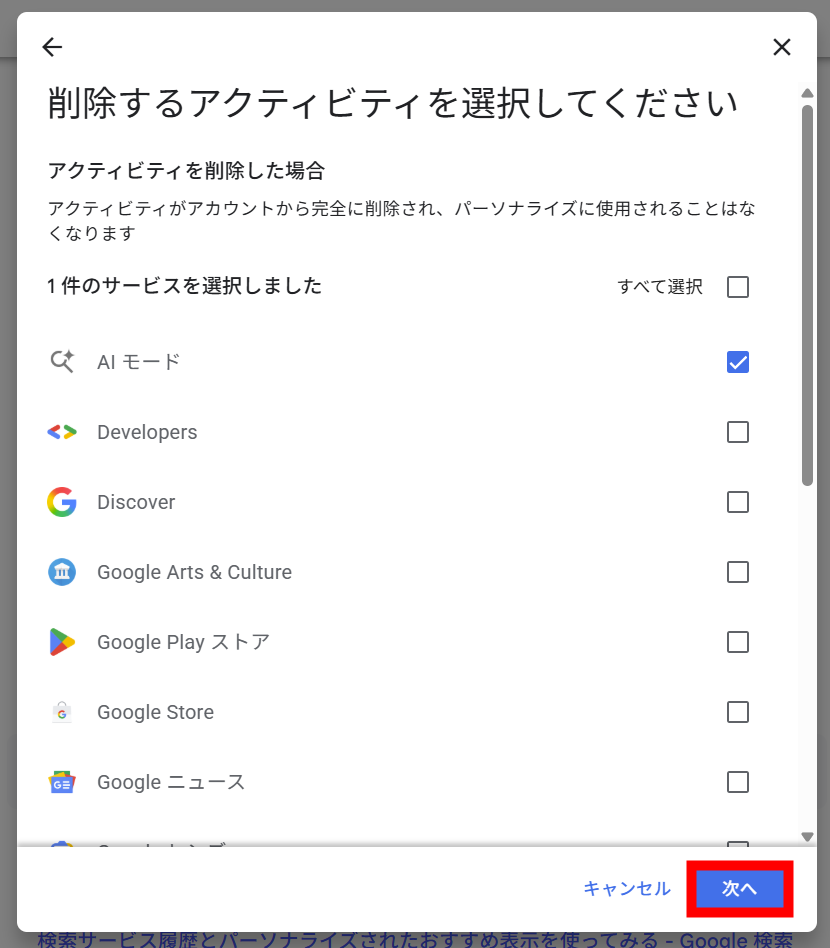
Deselect "All" and check only "AI mode," then click "Next."
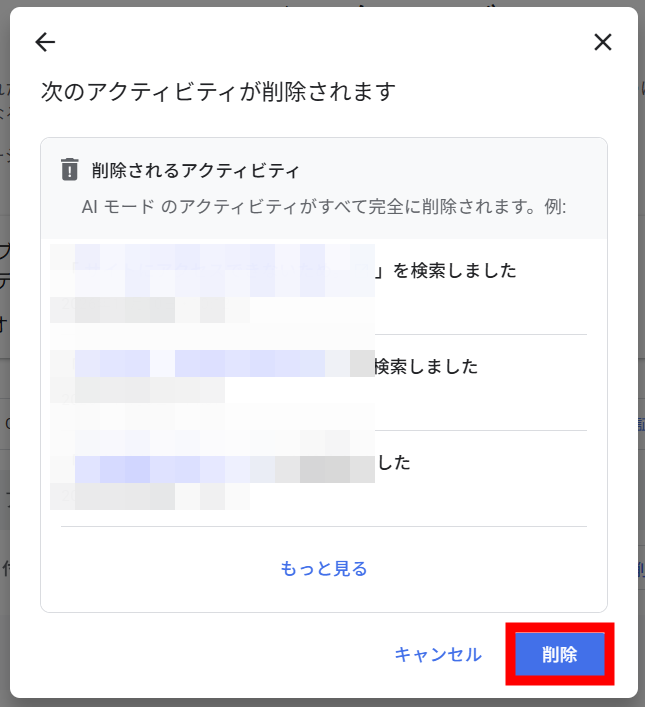
Once you confirm that the target for deletion is AI mode activity, click "Delete" and that's it.
・How to disable personalized ads
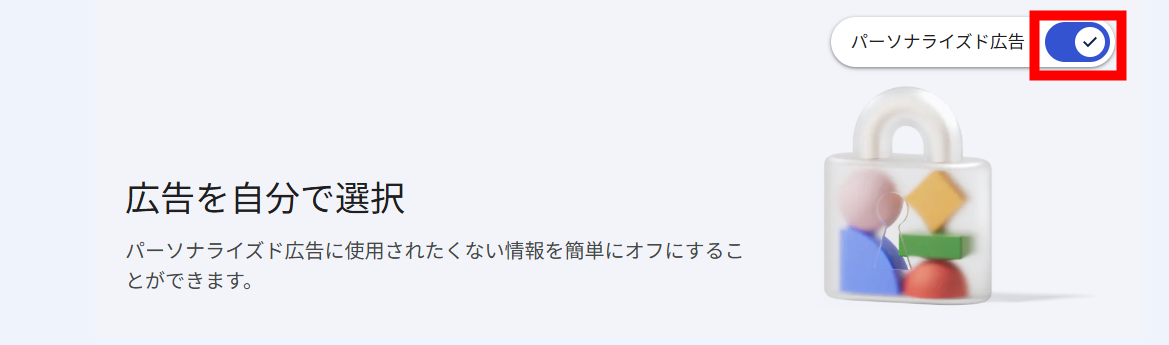
If you don't want all the information stored in your Google account, including data obtained from Gmail and Google Photos, to be used for ad personalization, open "My Ad Center", and click the "Personalized Ads" switch in the top right corner
Click "Disable ad personalization" at the bottom right when the confirmation screen appears
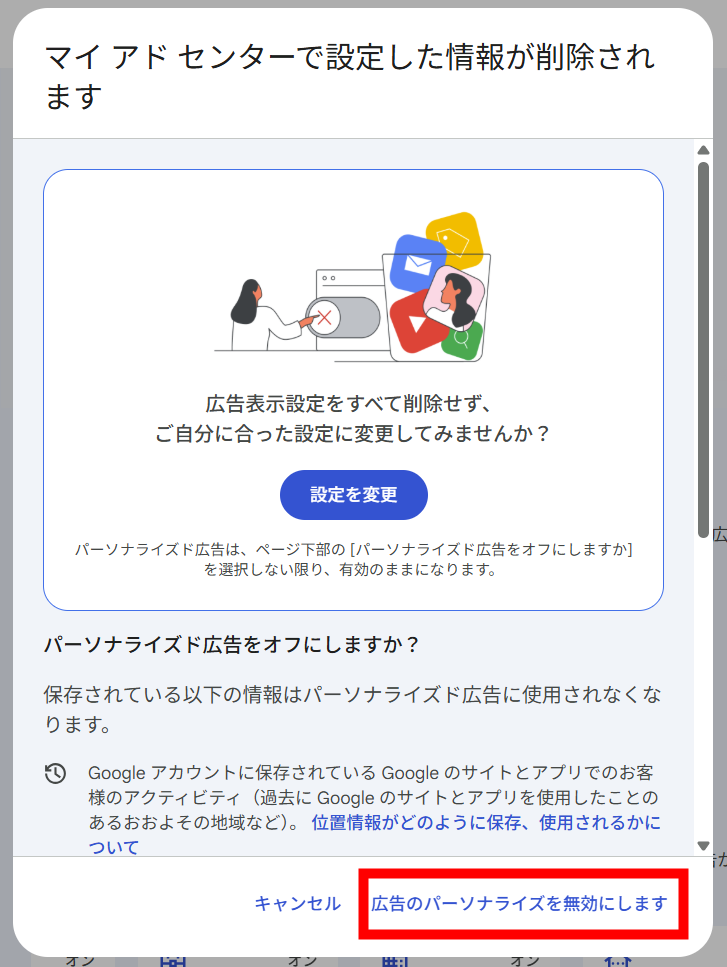
According to Google's explanation, turning off personalized ads will stop your account's stored information and usage history from being used in ad display, and instead, ads based on the content of the page you're viewing and the time of day will be shown.
・How to disconnect Gemini and Google Workspace
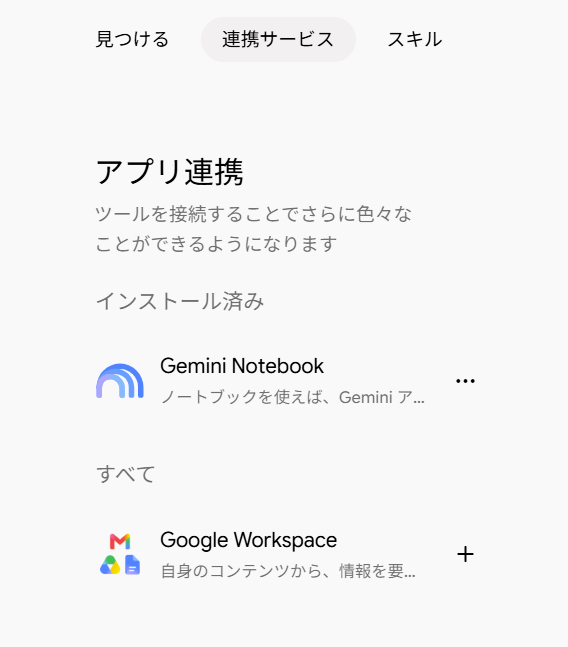
To disconnect the Gemini app's connection to data such as Gmail, open "Gemini app integration", and click "Disconnect" from the right end of the "…" next to "Google Workspace" under "Installed"
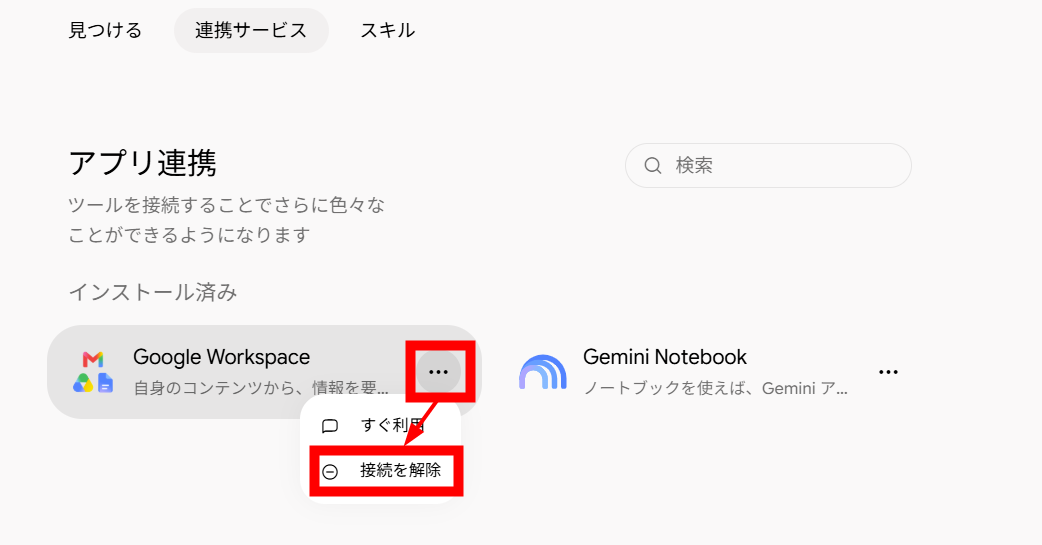
If "Google Workspace" moves out of "Installed" and appears under "All," it's done